
Your phone froze mid-call. The battery died by noon. Wi-Fi dropped right as you hit send. Android problems have a way of showing up at exactly the wrong moment, and the internet is full of vague, recycled advice that doesn’t actually fix anything.
Here’s the good news: the vast majority of Android problems fix, whether it’s battery drain, lag, apps crashing, or a phone that won’t stop overheating, the root cause is almost always software, not hardware damage. That means it’s fixable at home, for free, without a trip to the repair shop.
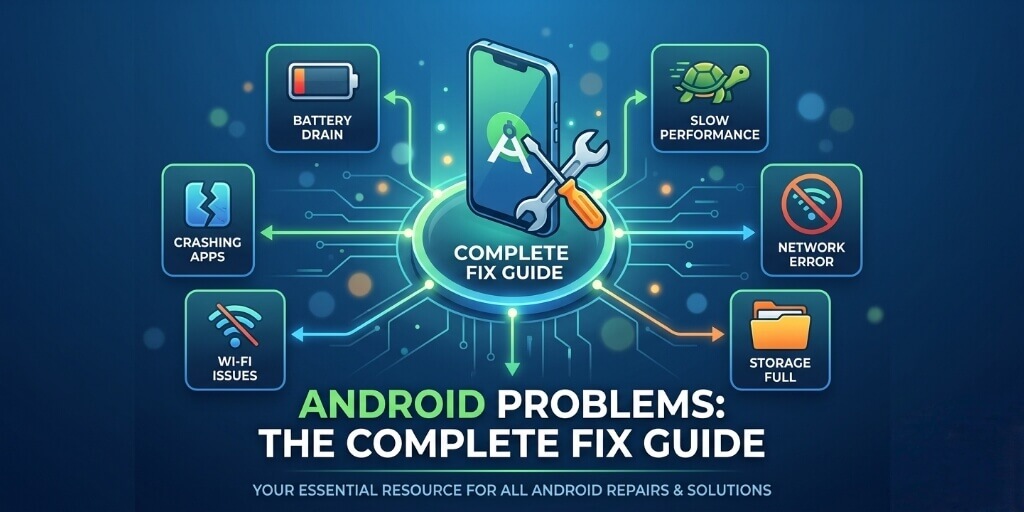
This guide covers every major Android problem in one place. Each section gives you the most likely cause and the fastest fixes to try right now, with links to full step-by-step guides for each issue. Works across all Android brands: Samsung, Pixel, Xiaomi, OnePlus, Tecno, Infinix, and more.
⚡ Quick Summary: 3 Most Common Android Problems
- 🌡️ Phone overheating → Full fix guide →
- 🔋 Battery draining fast → Full fix guide →
- 💾 Storage full after deleting files → Full fix guide →
What Actually Causes Android Problems?
Before diving into individual fixes, a quick mental model helps. Android problems rarely appear out of nowhere, they almost always trace back to one of eight root causes. Understanding which category your problem falls into tells you where to look first.
Root Cause | How It Leads to Problems |
|---|---|
Software Updates | OS and app updates can introduce bugs, change system behaviour, or reset settings. Many problems surface within 48 hours of an update. |
Background App Activity | Apps running silently in the background are the #1 cause of battery drain, overheating, and excess data usage. |
Storage Pressure | When free storage drops below 10–15%, Android’s file system degrades performance, affecting speed, camera stability, and app reliability. |
Manufacturer Customisation | Samsung One UI, MIUI/HyperOS, and OxygenOS each add their own layer on top of stock Android, and each introduces unique quirks. |
Hardware Age | Lithium-ion batteries degrade roughly 20% per year under normal use. Most performance problems on phones older than two years trace back to battery health. |
Network Issues | Poor carrier signal, router firmware bugs, and conflicting network settings cause the majority of connectivity problems. |
App Conflicts | Two or more apps competing for the same resource, microphone, location, notifications, create unpredictable failures. |
Corrupted Cache | Android’s system cache accumulates corrupted data over time. A cache partition wipe clears this safely, without deleting any personal data. |
With that framework in mind, let’s get into the 3 most common problems, and exactly what to do about each one.
The 3 Most Common Android Problems, and How to Fix Them
1. Android Phone Overheating
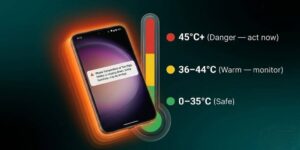
The cause: The most common culprits are CPU-intensive apps running in the background, fast charging combined with heavy use, prolonged screen time at full brightness, and your phone working overtime to hold onto a weak Wi-Fi or cellular signal. Temperatures above 45°C cause Android to throttle the processor, you’ll notice this as sudden lag or the screen dimming on its own.
Quick fixes to try right now:
- Close all background apps via the Recent Apps screen and wait two minutes.
- Enable Battery Saver or reduce screen brightness immediately to cut the thermal load.
- If charging: disconnect the charger and let the phone cool for 5–10 minutes before resuming use.
💡 Key fact: Charging at high temperatures reduces battery lifespan by up to 30% over time. Heat isn’t just uncomfortable, it’s cumulative damage to your battery.
For the full step-by-step solution → Android Phone Overheating — Causes and Fixes
2. Android Battery Draining Fast
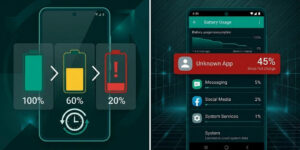
The cause: Battery drain is almost never random, there is always a root cause. In 2026, the top culprits are aggressive 5G signal scanning, post-update optimisation cycles (which can run for 24–72 hours after an OS update), background sync services, and wakelocks from poorly coded apps that prevent the phone from entering a true sleep state.
Quick fixes to try right now:
- Go to Settings → Battery → Battery Usage and look for any app consuming battery while the screen was off.
- Restrict background activity for that app: Settings → Apps → [App] → Battery → Restricted.
- If drain started right after an update, wait 48–72 hours, post-update optimisation cycles are the most common and most overlooked cause.
💡 Key fact: A healthy overnight drain is 3–5% with the screen off. Anything above 10% with the screen off means something is actively running in the background that shouldn’t be.
For the full step-by-step solution → Android Battery Draining Fast — Real Solutions
3. Android Storage Full Even After Deleting Files
The cause: Deleting photos and apps only removes the visible files. Android quietly accumulates hidden residual data: app cache, offline content, thumbnail databases, and ‘ghost files’ left behind by uninstalled apps. These invisible files can occupy several gigabytes while appearing nowhere in your gallery or standard file manager.
Quick fixes to try right now:
- Open Files by Google → Clean → Free Up Space for a breakdown of what’s actually consuming storage, including items the standard file manager won’t show.
- Clear cache individually for your largest apps: Settings → Apps → [App] → Storage → Clear Cache.
- Check your Download folder. It’s one of the most overlooked storage hogs and accumulates silently over months.
💡 Key fact: A storage analyser app like DiskUsage reveals the true breakdown of what’s consuming space, including hidden system data that’s completely invisible to the standard file manager.
For the full step-by-step solution → Android Storage Full Even After Deleting Files — Full Fix
Quick Reference: All 3 Android Problems at a Glance
Use this table to jump directly to the guide for your specific problem. All links open the full step-by-step fix guide for that issue.
# | Problem | Quick Fix | Full Guide |
|---|---|---|---|
1 | Phone overheating | Close background apps, reduce brightness, disconnect charger | |
2 | Battery draining fast | Settings → Battery → Usage — restrict background apps | |
3 | Storage full after deleting | Use Files by Google to find hidden cache and ghost files |
When the Problem Is Hardware, Not Software
The vast majority of Android problems are software-based fixable at home, free of charge, with no technical knowledge required. But a small percentage do require professional repair, and it’s important to know the difference before spending time on software fixes that won’t help.
Three signs point clearly to a hardware problem rather than a software one:
- The problem persists after a factory reset. A factory reset wipes all software to a clean state. If the issue remains on a completely clean install, the problem is physical.
- Visible physical damage is present. A cracked screen, bent frame, or triggered water damage indicator (usually a small red dot inside the SIM tray) confirms the device has experienced physical damage.
- The battery is visibly swollen. A swollen battery pushes the back panel outward or causes the screen to lift. Stop using the phone immediately. A swollen lithium-ion battery is a genuine fire risk.
If any of these apply, locate an authorised service centre for your device. Google’s repair centre locator covers Pixel devices. For Samsung, use the Samsung Service Locator to find a certified technician near you.
Frequently Asked Questions
Why does my Android phone keep having problems?
What is the first thing to do when my Android phone has a problem?
How do I fix my Android phone without factory resetting it?
Why does my Android phone slow down after an update?
Why is my Android battery draining so fast all of a sudden?
Is it safe to factory reset my Android phone?
What are the most common Android problems in 2026?
Why does my Android keep freezing?
Can a software update break my Android phone?
How do I know if my Android problem is hardware or software?
The Bottom Line
Roughly 95% of Android problems are software-fixable, no technician, no repair fee, no data loss required. Use the problem list or the quick reference table above to navigate directly to the guide for your specific issue, follow the steps in order, and you’ll have a clear answer within minutes.
Which fix worked for you? Drop a comment below, it helps other Android users with the same problem find the right solution faster.