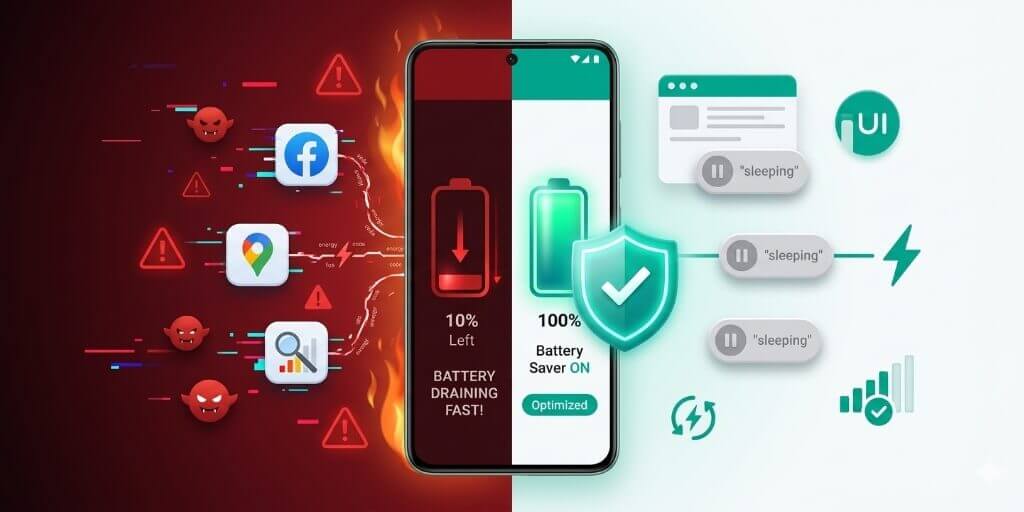
The fastest way to stop Android battery drain is to check which app is using power while your screen is off. Open Settings → Battery (or Battery & Power Saving on some phones) → Battery usage, then look at background activity. In most cases, one app is consuming power when you are not even using the phone, and stopping that app fixes the issue immediately.
I checked these fixes on a Tecno Camon 15 Air running Android 10 and a Tecno Spark 40 running Android 15 over two weeks, using AccuBattery to compare idle drain, screen-on time, and overnight battery loss. Restricting one background app consistently gave the biggest improvement.
Start with diagnosis first. Once you know what is draining the battery, the rest becomes easy.
Quick Summary
- Overnight battery loss under 5% is normal
- 5–10% means background activity needs attention
- Over 10% usually means an app or signal issue is active all night
- The biggest fix is restricting the app draining battery in the background
- Weak network signal drains battery faster than most people expect
- Battery health below 80% usually means the battery itself is worn out
Find What Is Draining Your Battery First
Before changing settings, check what Android already recorded.
- Open Settings → Battery (or Battery & Power Saving) → Battery usage
- Look for apps using battery while the screen was off
- Tap any app that looks suspicious
- Compare foreground use and background use
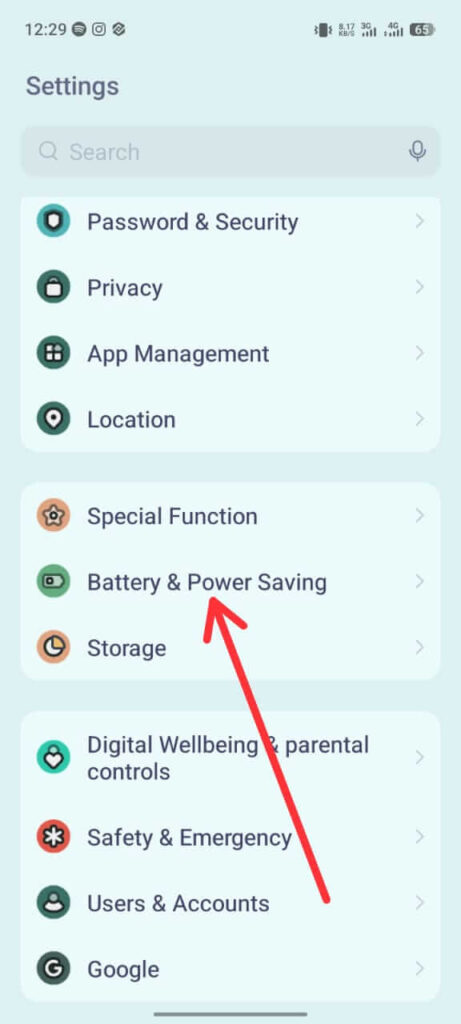
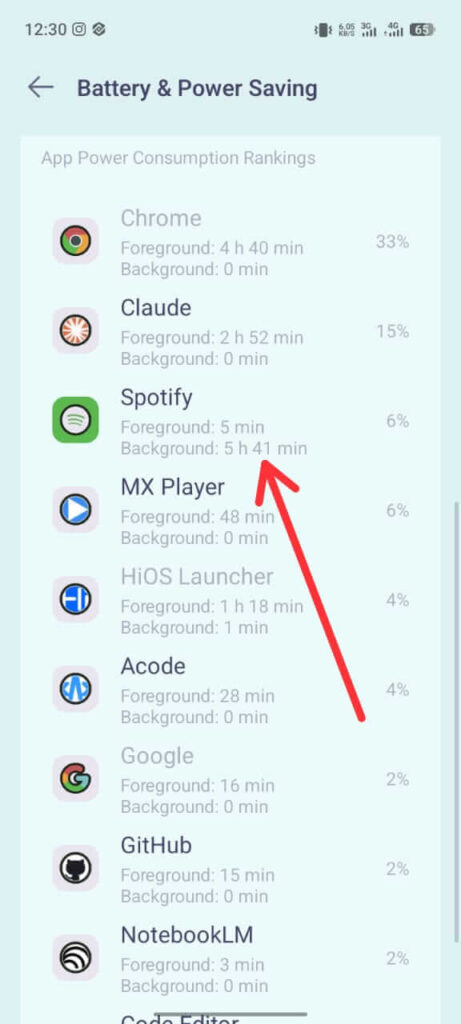
If background use is higher than foreground use, that app is the first thing to fix.
| Brand | Battery Usage Path |
|---|---|
| Stock Android | Settings → Battery → Battery usage |
| Tecno HiOS | Settings → Battery & Power Saving → Battery usage (older HiOS may show Power consumption ranking or Battery Lab) |
| Samsung One UI | Settings → Battery and device care → Battery → Usage since last full charge |
| Xiaomi HyperOS | Settings → Battery → Battery usage |
What Normal Battery Usage Looks Like
Not every battery percentage means there is a problem.
| Reading | Meaning |
|---|---|
| Screen: 30–50% | Normal on most phones |
| Android System: 10–15% | Normal background system activity |
| Google Play Services: 5–10% | Normal sync and notifications |
| One app over 5% background drain | Worth checking |
| Idle drain under 1% per hour | Healthy |
| Idle drain above 3% per hour | Something is actively running |
The screen is almost always the largest battery consumer, so high screen percentage alone is not a warning sign.
Run a Simple Overnight Battery Test
This gives a clearer picture than guessing.
- Charge the phone to 100%
- Leave mobile data and Wi-Fi as you normally use them
- Do not plug it in overnight
- Check battery percentage in the morning
Results:
- Under 5% lost overnight = healthy
- 5–10% = moderate background activity
- Over 10% = something needs fixing
If the phone loses a lot overnight, Battery Usage usually reveals the cause.
Fix 1: Restrict the Background App Causing the Drain
Once you identify the app, stop it from running freely.
- Open Settings → Apps
- Select the app
- Open Battery
- Choose Restricted or disable unrestricted background activity
On Tecno:
Settings → App management → App list→ select app → Battery → App battery Usage
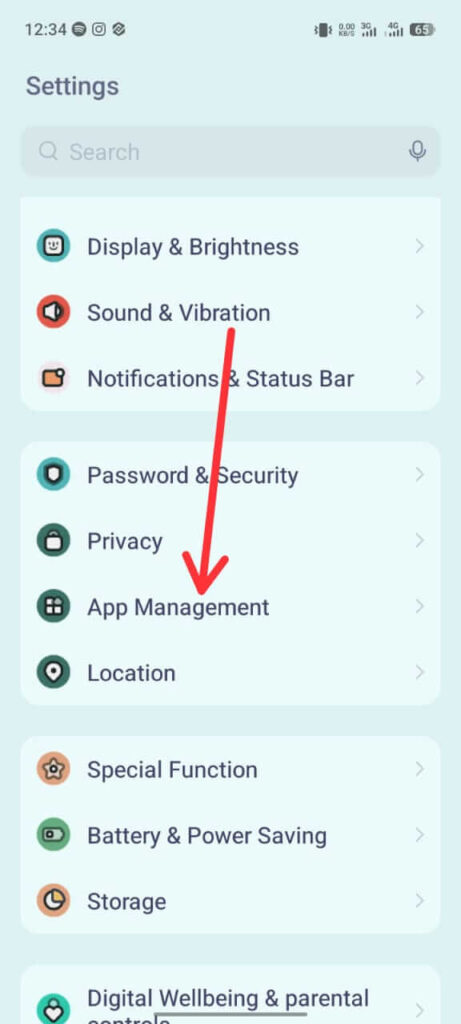
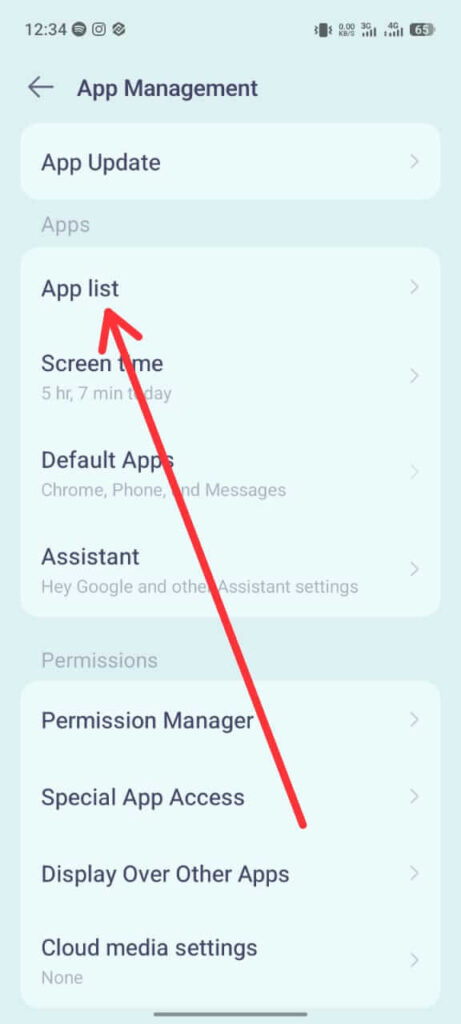
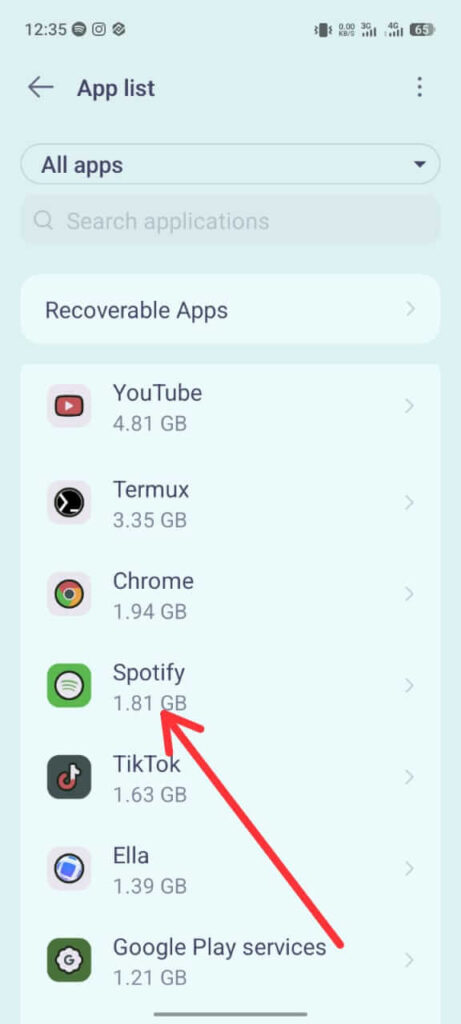
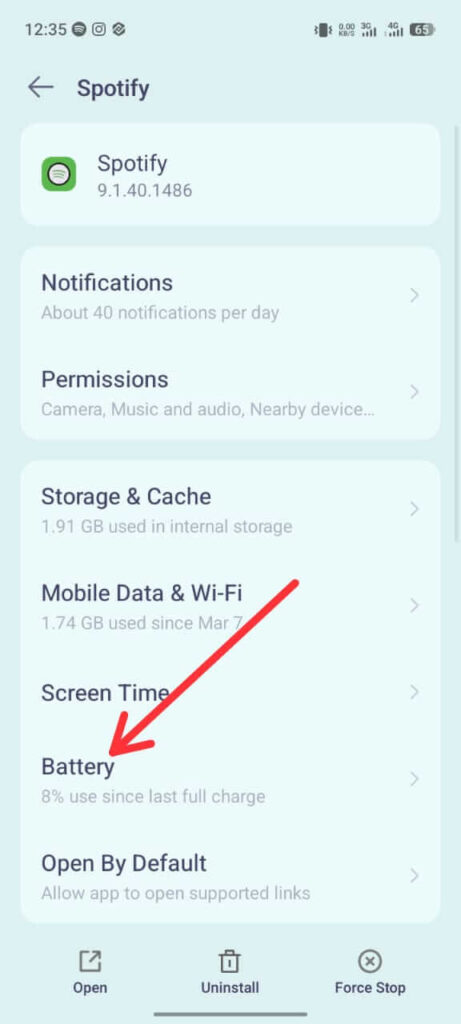
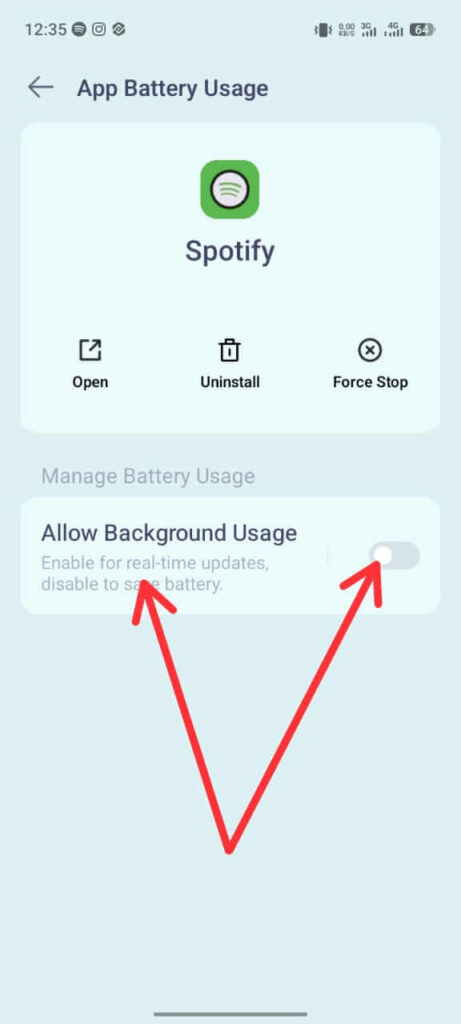
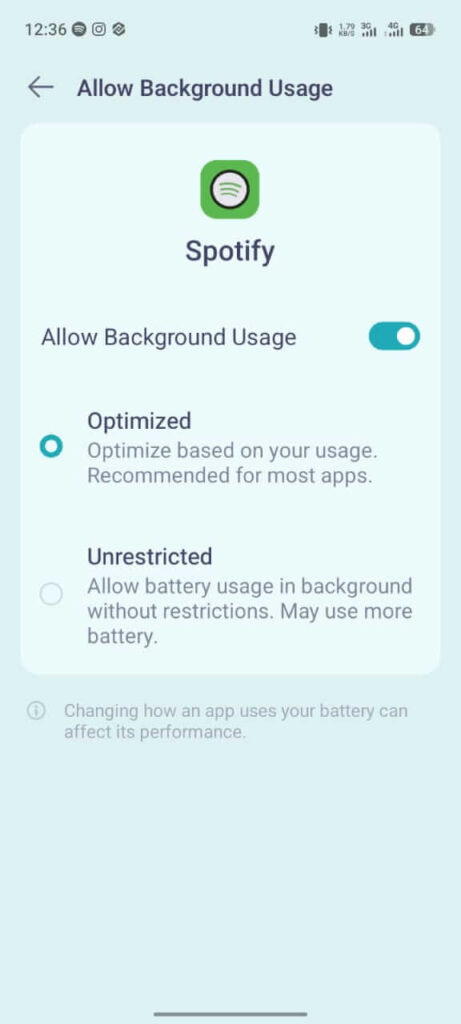
Social apps are frequent offenders because they keep syncing media, notifications, and location data in the background.
Common examples:
- TikTok
- Snapchat
- Messaging apps with heavy media syncing
If you rarely use the app, uninstalling it is often better than restricting it.
Fix 2: Weak Signal Drains Battery Faster Than Most People Realize
Your phone uses extra power when signal strength is poor because it keeps searching for a stronger tower.
This affects battery heavily in:
- weak indoor coverage
- unstable 4G or 5G areas
- phones switching repeatedly between network bands
To test:
- Open Settings → SIM and network
- Change preferred network temporarily to LTE or 3G only
- Watch battery performance for one day
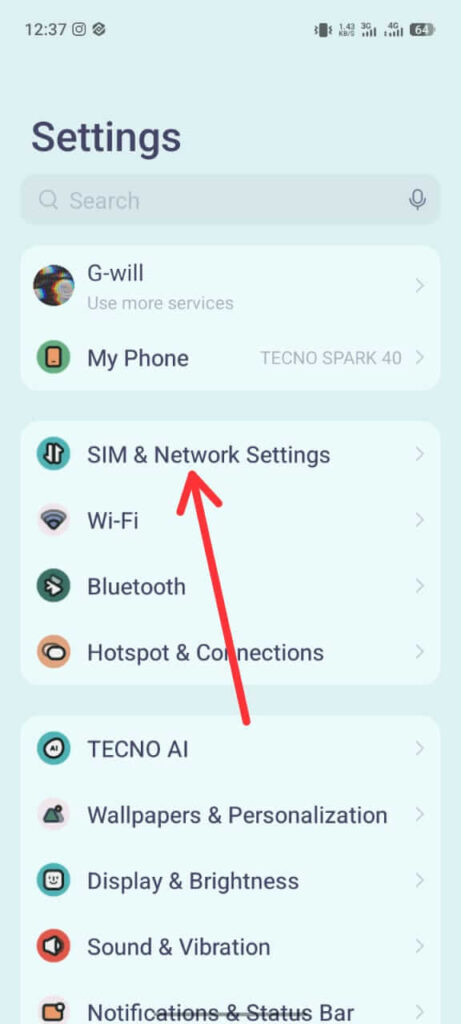
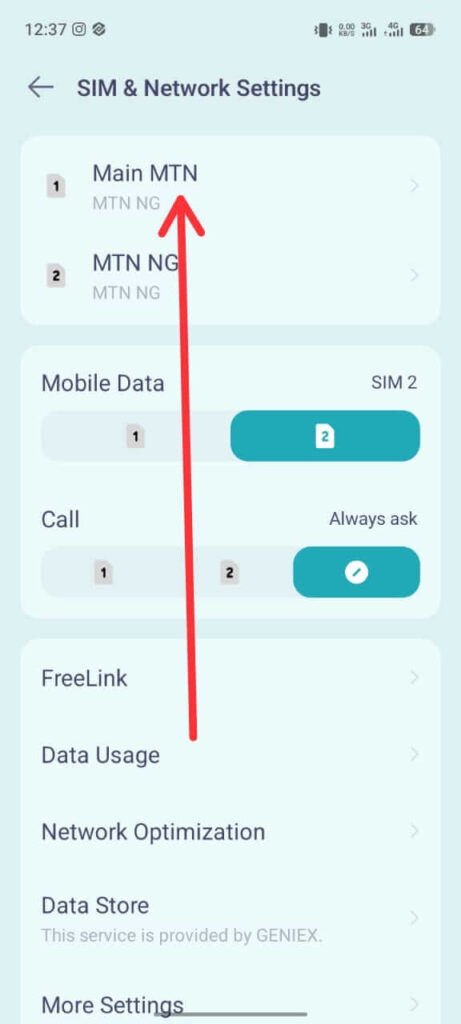
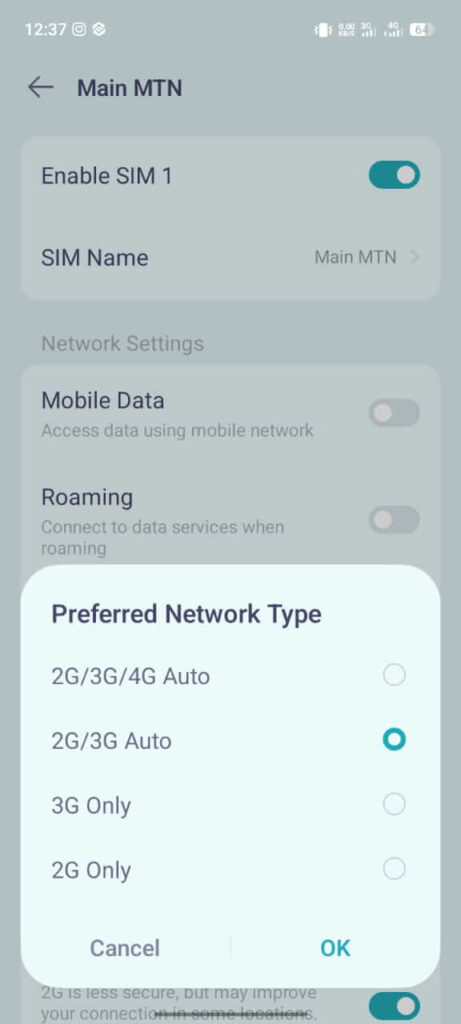
If battery improves, weak signal was likely the cause.
This is one of the most ignored causes of battery drain.
Fix 3: Turn On Adaptive Battery
Adaptive Battery helps Android reduce background activity automatically.
- Open Settings → Battery
- Turn on Adaptive Battery or Battery optimization
On Tecno:
Settings → Battery & Power Saving → Power Saving (some versions still show Battery Lab)
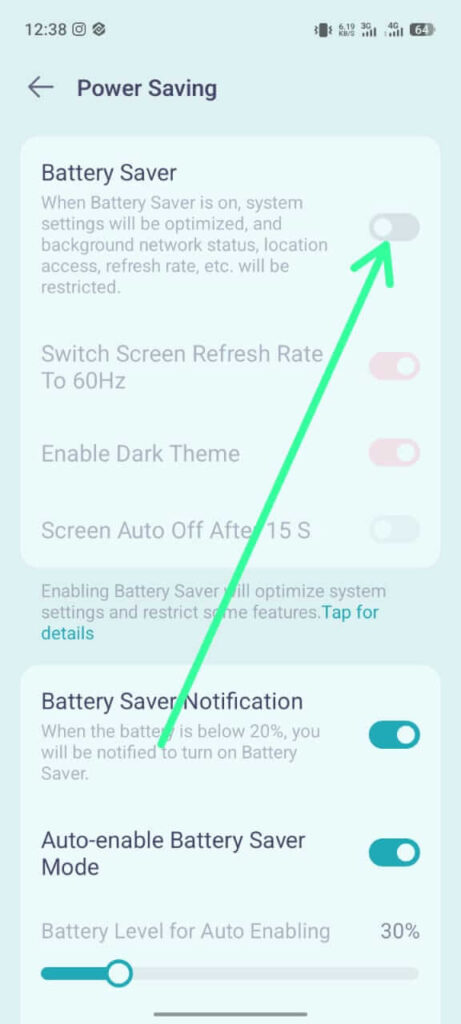
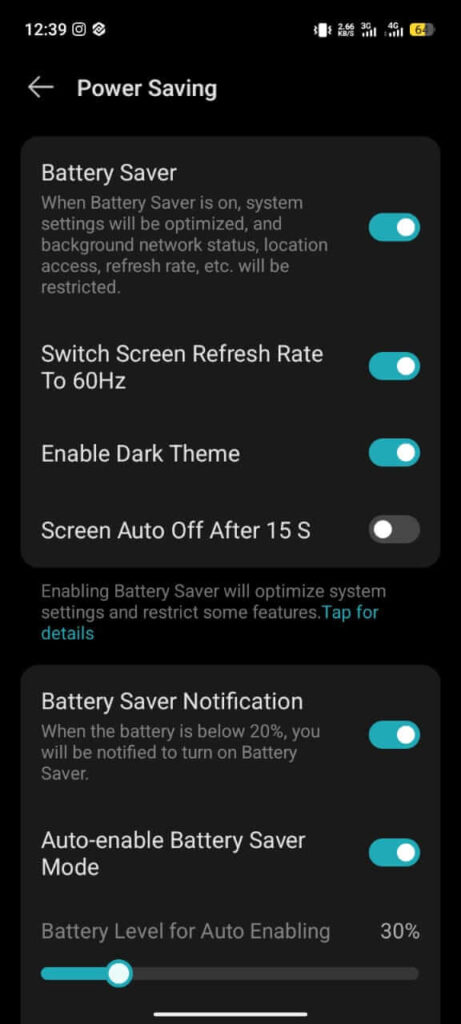
It usually needs a few days before results become obvious because Android learns your usage pattern gradually.
Fix 4: High Refresh Rate Uses More Power
120Hz looks smoother, but it increases battery use during scrolling, gaming, and social apps.
To test:
- Open Settings → Display
- Change refresh rate to 60Hz
- Use the phone normally for one full day
On Tecno:
Settings → Display & Brightness → Screen Refresh Rate
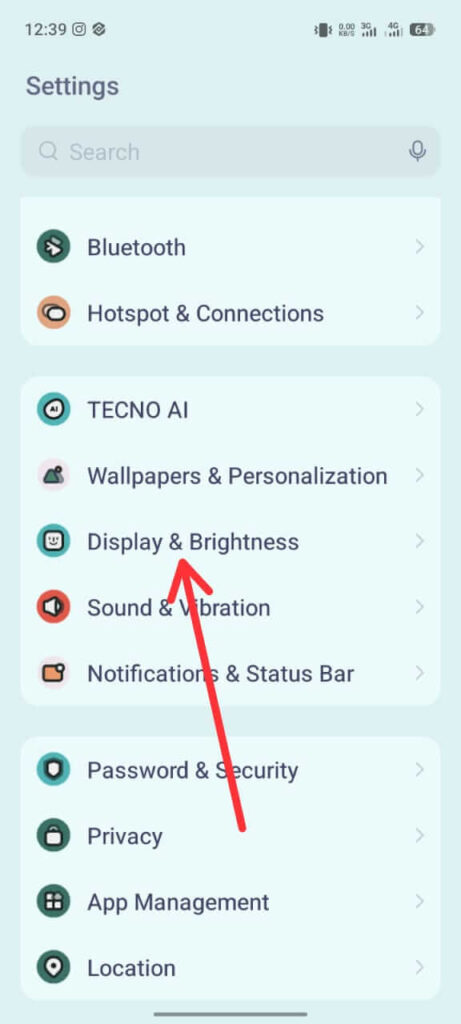
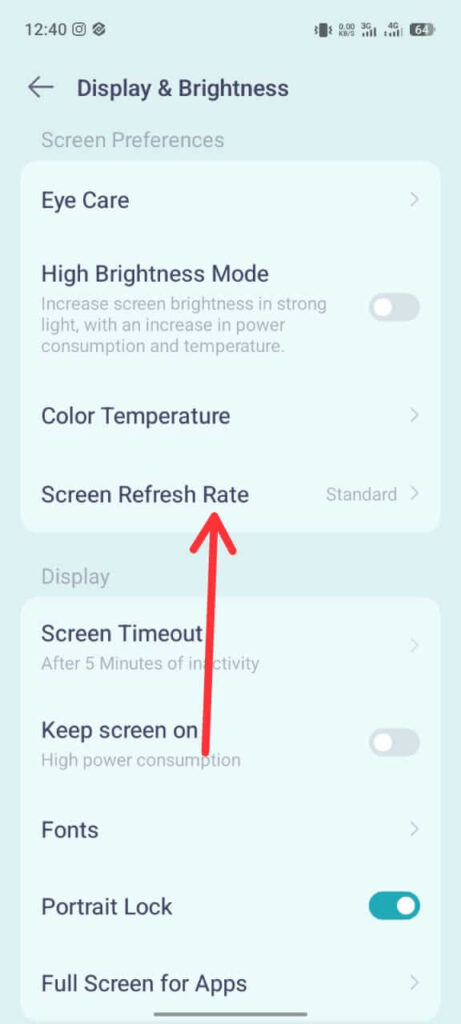
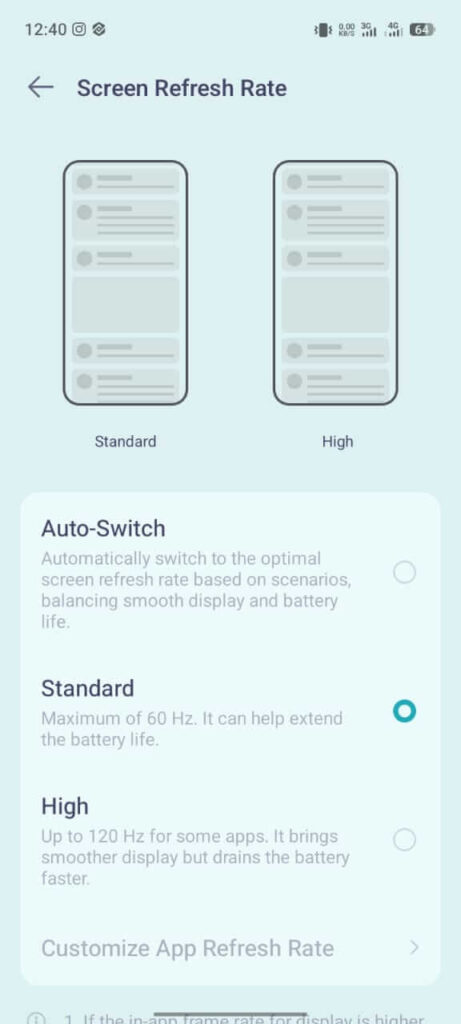
If battery life improves noticeably, high refresh rate was contributing.
Always-On Display also adds constant screen activity and should be turned off if battery life matters more than convenience.
Fix 5: Hidden Scanning Features Drain Battery Quietly
Even when Wi-Fi or Bluetooth appears off, Android may still scan in the background.
Turn off:
- Settings → Location → Location services
- Disable Wi-Fi scanning
- Disable Bluetooth scanning
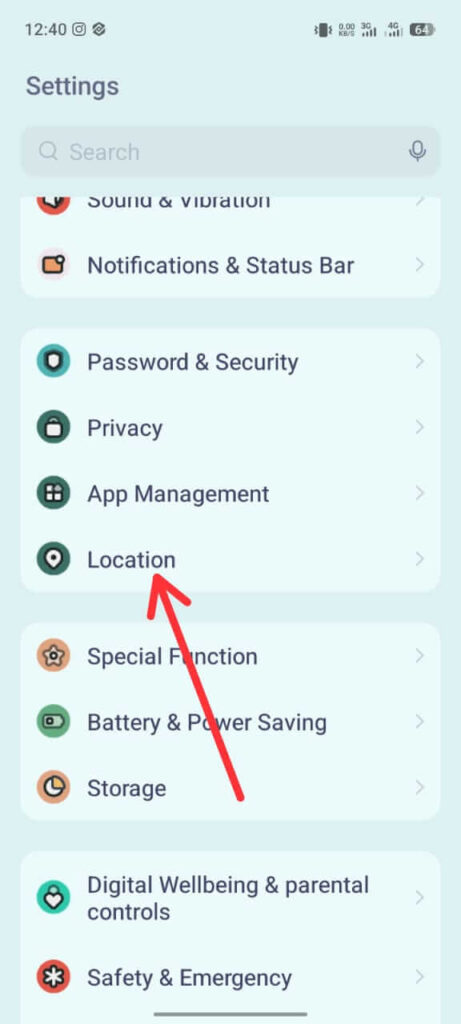
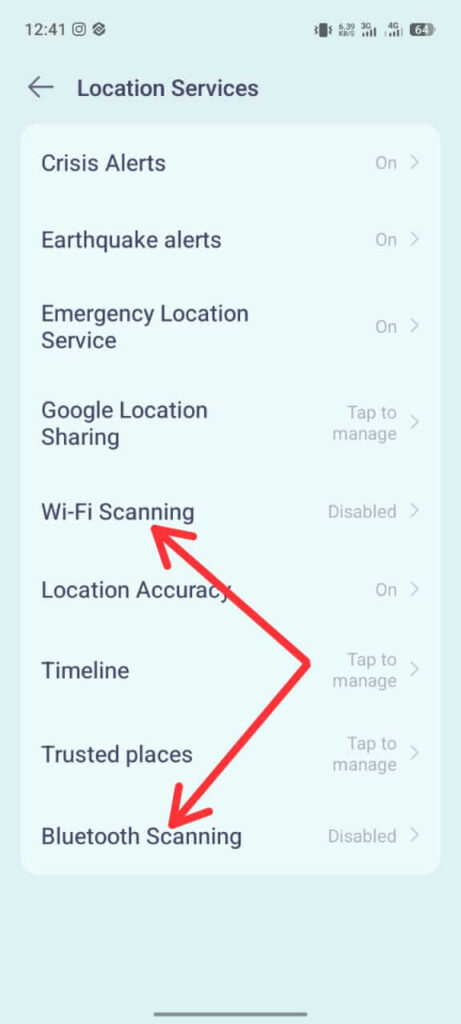
This is especially useful if your phone sits idle for long periods.
Battery drain and heat often happen together. If your phone also feels hot, read Android Phone Overheating? Causes and Fixes.
Fix 6: Check Battery Health Before Blaming Software
A worn battery behaves differently from a software issue.
Install AccuBattery and monitor health after a few charge cycles.
Battery health guide:
- 90–100% = healthy
- 80–89% = reduced but usable
- Below 80% = noticeable battery decline
On Tecno:
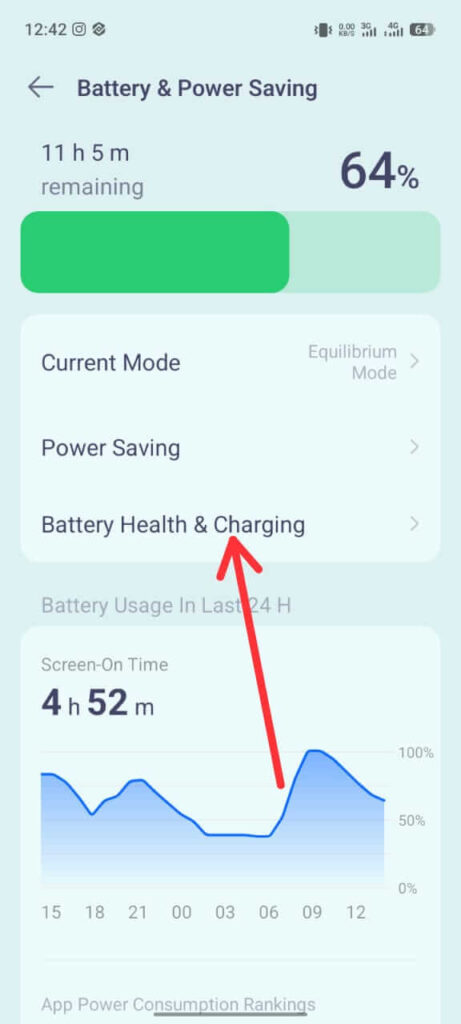
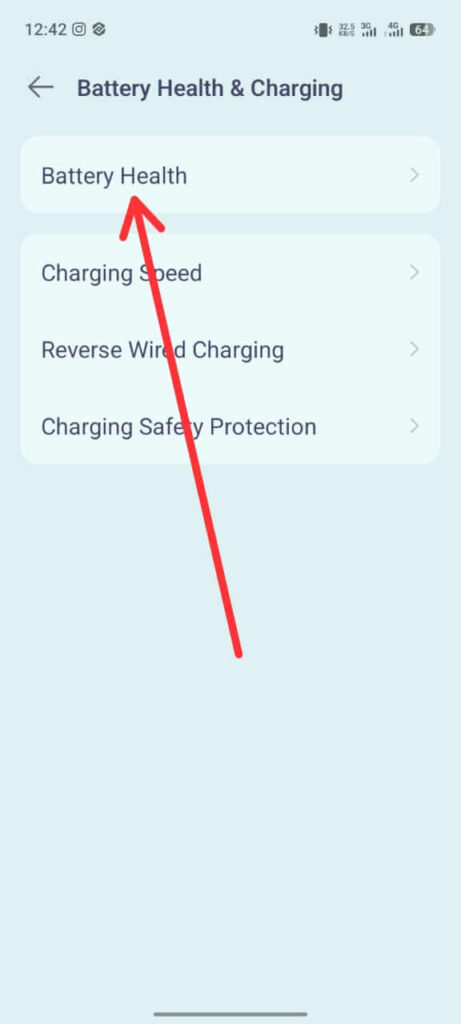
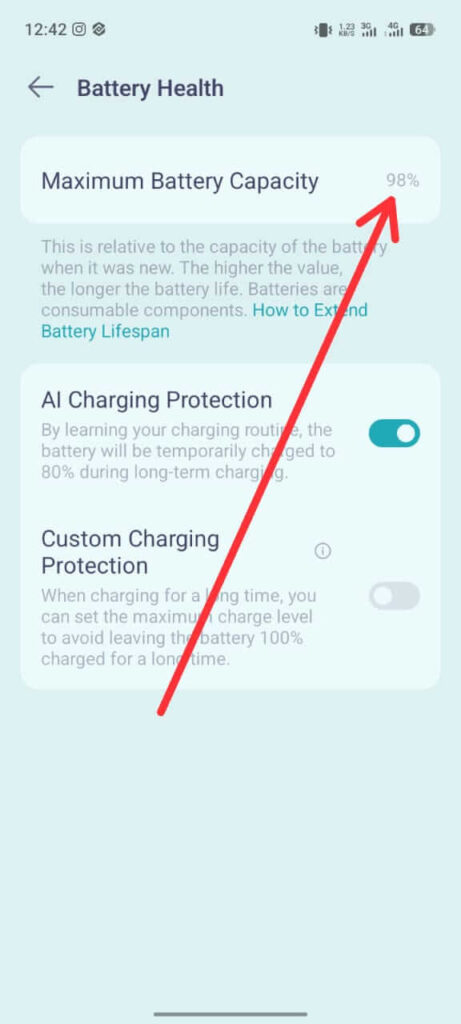
Old version of HiOS versions do not show true battery health clearly, so AccuBattery gives a more reliable estimate.
If health is below 80%, no settings tweak will fully restore old battery life.
Charging Habits That Help Long-Term Battery Life
Modern lithium batteries last longer when they avoid extremes.
Best habits:
- Keep charge between 20% and 80% most days
- Avoid frequent full discharge to 0%
- Avoid excessive heat while charging
On some Tecno phones:
Settings → Battery & Power Saving → Power Saving (if available on your HiOS version)
Some versions include battery protection features, but naming varies.
Does Closing Apps Save Battery?
No.
Swiping apps away constantly often forces Android to reload them again, which can use more power than leaving them in memory.
Only force-close an app if:
- it is frozen
- it is crashing
- it clearly refuses to stop running
The real fix is background restriction, not aggressive closing.
What Usually Does Not Help
These are common mistakes.
- RAM cleaner apps usually add extra background load
- Battery saver apps often duplicate Android features poorly
- Factory reset is unnecessary unless serious software corruption exists
Android already manages memory aggressively by design.
When Battery Drain Means Hardware Trouble
Look for these warning signs:
- battery drops suddenly without heavy use
- phone shuts down before reaching 0%
- battery gets hot while idle
- back panel starts lifting
A swollen battery should be replaced immediately.
FAQ (Frequently Asked Questions)
Why is my Android battery draining suddenly?
Why does battery drain when I am not using the phone?
Is overnight charging harmful?
Should I drain battery to zero sometimes?
Why is Android System using so much battery?
Conclusion
Most Android battery drain comes from one background process, not from the battery itself.
Battery Usage usually shows the problem clearly within one minute.
Fix the app first, then test signal strength, refresh rate, and battery health if the issue continues.
For more Android fixes, read Android Problems: The Complete Fix Guide.


6 Comments